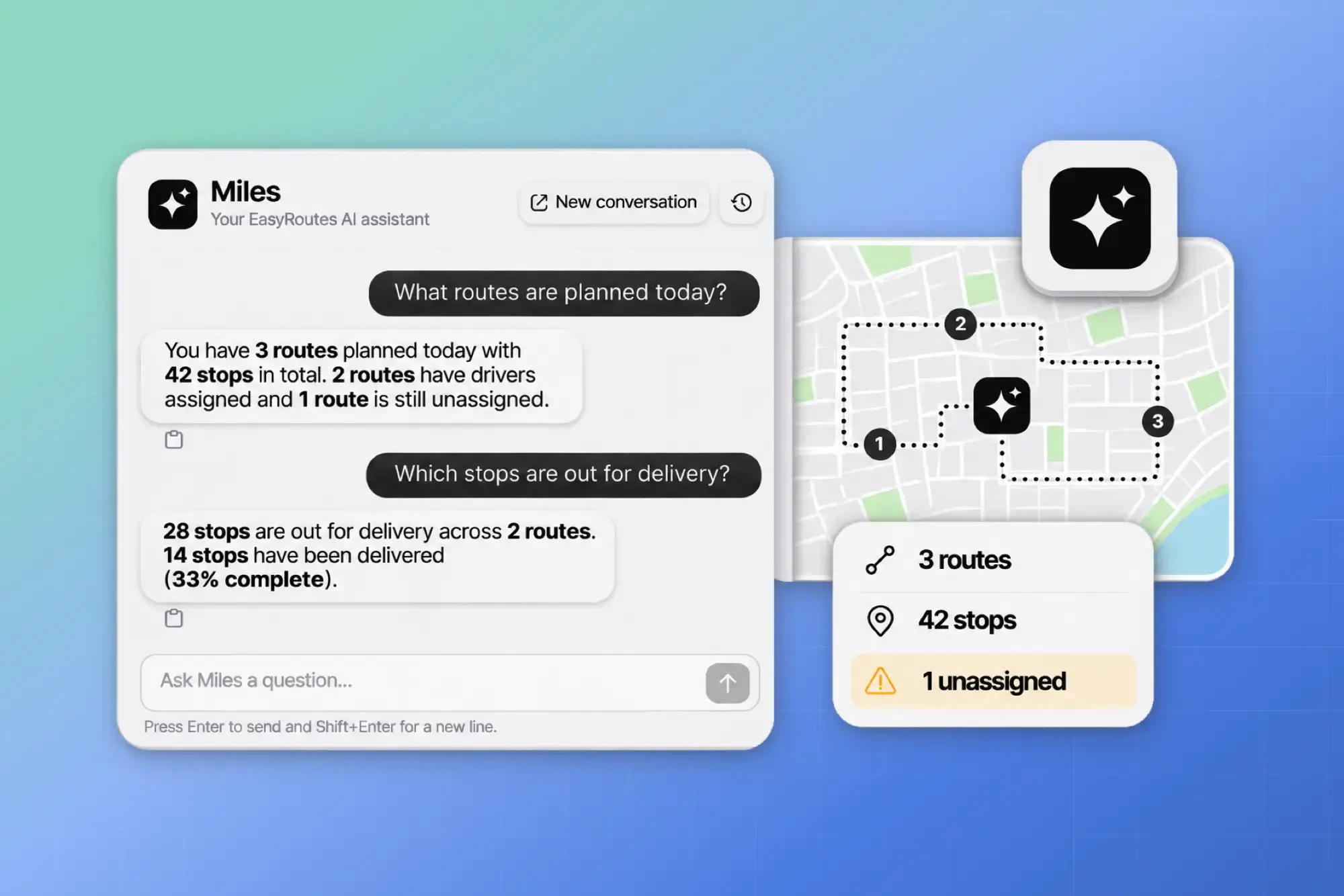
Our goal at EasyRoutes has always been to automate your delivery operations, so you can do more with the same team in less time. Today we’re introducing Miles, the AI assistant built directly into EasyRoutes. Ask Miles about your routes, stops and drivers in plain English, and it answers from your own delivery records. Miles is included with Premium and Enterprise plans on EasyRoutes for Shopify and EasyRoutes for Web, at no extra cost.
What Miles is
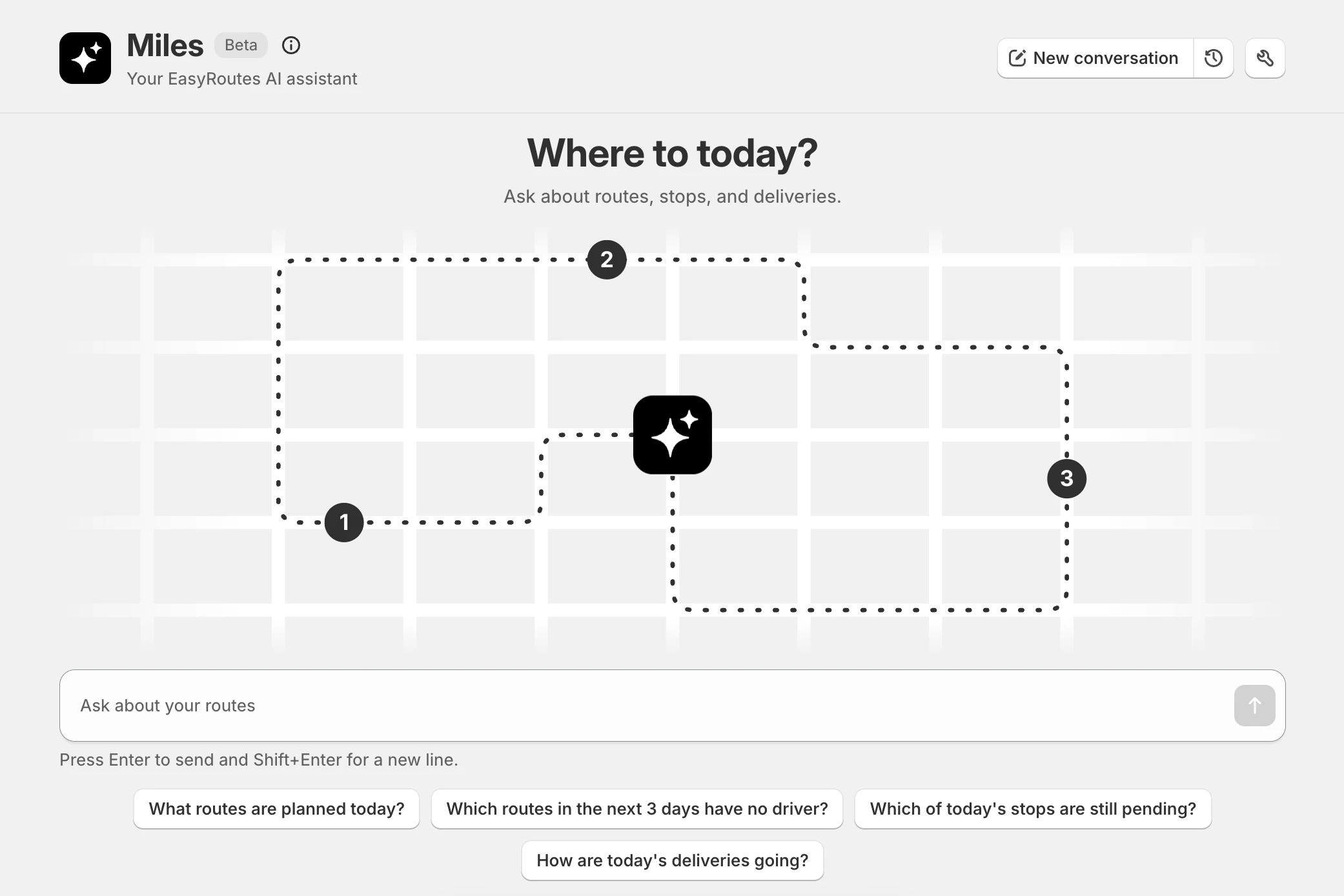
Miles lives inside EasyRoutes, at the top of the sidebar navigation menu. There’s nothing to install and no API keys to set up: open Miles, pick a suggested question or type your own, and it looks up the answer in your routes, stops and drivers.
Miles starts out read-only. It answers questions and drafts messages, and it doesn’t change anything in your account. Over time, Miles will run more of your delivery day, like planning routes, dispatching drivers and handling exceptions. Those are coming, and we’re building them based on what’s most valuable to our users.
What you can ask Miles
You: Show me the notes my drivers left this week.
Here are the proof-of-delivery and attempted-delivery notes recorded on this week's routes (Nov 17–18, 2026):
- East End (Nov 18, driver: Jane Doe)
- #1229 — Lina Haddad (marked delivered at 09:54): "Left in the vestibule."
- #1223 — Jordan Ellis (marked attempted at 10:09, reason:
ACCESS_DENIED): "Gate locked, no answer."
- Midtown (Nov 17, driver: Priya Nair)
- #1207 — Noor Haddad (marked delivered at 16:55): "Gate code changed."
- #1204 — Daniel Kim (marked attempted at 17:19, reason:
NOT_AVAILABLE): "Buzzer broken, called twice"
- Downtown (Nov 17, driver: John Smythe)
- #1205 — Sofia Marino (marked attempted at 17:37, reason:
INCORRECT_ADDRESS): "No unit number provided" - #1206 — Liam Tremblay (marked delivered at 17:47): "Left with front desk concierge"
- #1205 — Sofia Marino (marked attempted at 17:37, reason:
You: What's in Daniel Kim's order today, and are there any notes?
Daniel Kim's stop today (Order #1204 on Midtown, driver: Priya Nair, ETA: 9:37 AM) includes:
- Items: 2 × Flower Bouquet - Red
- Notes: None recorded on today's stop
You: Was the Leslieville Bakery order delivered?
Yes—a driver or dispatcher marked the Leslieville Bakery order (#1225, Hannah Wells, 1086 Queen St E) on East End as delivered at 10:20 AM today.
- Proof of delivery: 1 signature on file (no photo or proof-of-delivery note)
Miles answers the questions you’d otherwise answer by clicking through routes one at a time. Some of the ones it handles well:
- What’s planned: “What routes are planned today?” Miles lists each route with its driver, number of stops and start time.
- Routes that need a driver: “Which routes in the next 3 days have no driver?”
- How the day is going: “Which of today’s stops are still pending?” or “How are today’s deliveries going?”
- Where an order is: look up a stop by customer name, company, address, order number, phone or email, once it’s on a route. Miles tells you which route and stop it is, its status and its ETA.
- What went wrong: “What failed yesterday, and why?” Miles reads the reason and note the driver recorded at each attempted stop.
- What’s in an order: “What’s in Daniel Kim’s order today, and are there any notes?” Miles lists the items, and any order, customer or stop notes.
- Proof of delivery: “Did the driver get a signature for Amara?” Miles tells you whether a photo or signature was recorded, and when the stop was marked delivered.
- Your drivers: a driver’s phone number, or who’s active, inactive or archived on your team. Ask for “Alex” with two Alexes on the team, and you’ll get details on both.
- Gathering details: “Show me the notes my drivers left this week.” Miles collects delivery and attempted-delivery notes from every route.
A few things make answers easier to use. Miles calls routes by their names rather than IDs, and shows times in your account’s timezone. Answers are short, so ask a follow-up when you want more. When you search for a stop, Miles looks a week on either side of today. If the stop isn’t there, Miles says what it searched and asks roughly when the delivery was, then looks again. Your past conversations stay in the history menu, so you can go back to an earlier answer.
What Miles can write for you
You: Draft an update for Daniel Kim.
Hi Daniel,
Here is an update on your order #1204 for delivery today (November 18, 2026) to 545 Dovercourt Rd, Toronto, ON, M6H 2W5:
Your stop is currently on today's delivery schedule with an ETA of 9:37 AM, though our records do not yet show the route as started or the stop marked as ready or out for delivery. We will share another update once there is a change in status.
What I left out:
- Any claim that the order is currently being packed/prepared, is ready, or is on its way (the Preparing status only means the stop hasn't been marked yet).
- Any new arrival time or driver location (the 9:37 AM ETA has passed, and no route start or updated ETA is recorded).
- Internal route details (Midtown route, driver Priya Nair) and yesterday's attempted delivery record.
You: Make it shorter.
Hi Daniel,
Your order #1204 is on today's delivery schedule (November 18, 2026) with an ETA of 9:37 AM, though our records do not yet show the route as started or the stop marked as ready or out for delivery. We'll follow up once the status updates.
Left out: Any claim that the order is being prepared, is ready, or is on its way; any revised arrival time or driver location; and internal route details.
You: Make it friendlier
Hi Daniel! Hope you're having a great day.
Just a quick update on your order #1204: it's on today's delivery schedule (November 18, 2026) with an ETA of 9:37 AM, though our records don't yet show the route as started or the stop marked as ready or out for delivery. We'll be sure to reach out as soon as there's an update!
Left out: Any claim that the order is being prepared, is ready, or is on its way; any revised arrival time or driver location; and internal route details.
You: Translate it to French
Bonjour Daniel ! J'espère que vous passez une belle journée.
Voici une petite mise à jour concernant votre commande #1204 : elle figure à l'horaire de livraison d'aujourd'hui (18 novembre 2026) avec une heure d'arrivée estimée (ETA) à 9 h 37, bien que nos dossiers n'indiquent pas encore que la tournée a commencé ni que l'arrêt a été marqué comme prêt ou en cours de livraison. Nous ne manquerons pas de vous contacter dès qu'il y aura du nouveau !
Left out: Any claim that the order is being prepared, is ready, or is on its way; any revised arrival time or driver location; and internal route details.
Miles can also write from what your routes show:
- Dispatch briefings: what’s going out, who’s driving and what needs a look before your drivers leave.
- Customer updates: a message a customer can read on its own, about where their order stands today. Miles drafts, adjusts, and even translates it, ready to copy to your clipboard.
- Delivery summaries: the day so far, route by route, counted from stop statuses.
Miles writes only what’s in your records. Under a customer update it lists what it left out: any claim that the order is on its way, a new arrival time it doesn’t have, and internal details like the route name and driver.
How to start using Miles
On a Premium or Enterprise plan, Miles is already in your EasyRoutes menu:
- Open EasyRoutes, in your Shopify admin or via EasyRoutes for Web.
- Choose Miles at the top of the sidebar navigation menu.
- Pick one of the suggested questions under the question box, or type your own.
On Free or Standard plans, the Miles page shows you how to move to Premium. On a free trial of Premium or Enterprise, use Request access on the Miles page to ask our team to enable it for you. Compare EasyRoutes plans on our pricing page.
Miles is AI, and it can make mistakes. Check important details in EasyRoutes before you act on them. Your store’s data isn’t used to train AI models.
Where Miles goes next
We know Miles should do more than answer questions, and we know that the most useful thing to build next depends on how you run your deliveries. So we’re starting with reading tools, watching what you ask Miles to do, and building from there. Planning routes, dispatching drivers and handling exceptions are all coming.
What would you hand over to Miles first? Tell our team: every answer directly informs what tools we build for Miles next.
Miles or the MCP server?
Bring your agent, or hire ours. If you already work in an AI assistant like Claude, ChatGPT Desktop, Cursor or Codex, the EasyRoutes MCP server connects it to your account with your API keys. It can set up, optimize and dispatch routes, asking you before every change. Developers can build on the same tools with the EasyRoutes API.
Miles needs none of that. It’s already in EasyRoutes, it knows your routes, and it’s ready when you open it. See more on the Miles page.
Further information
Still have questions about Miles? Search the EasyRoutes support portal for answers at any time, see our help article, Miles: EasyRoutes’ AI Assistant, or reach out to the Roundtrip support team if we can help with anything else. Happy delivering!