
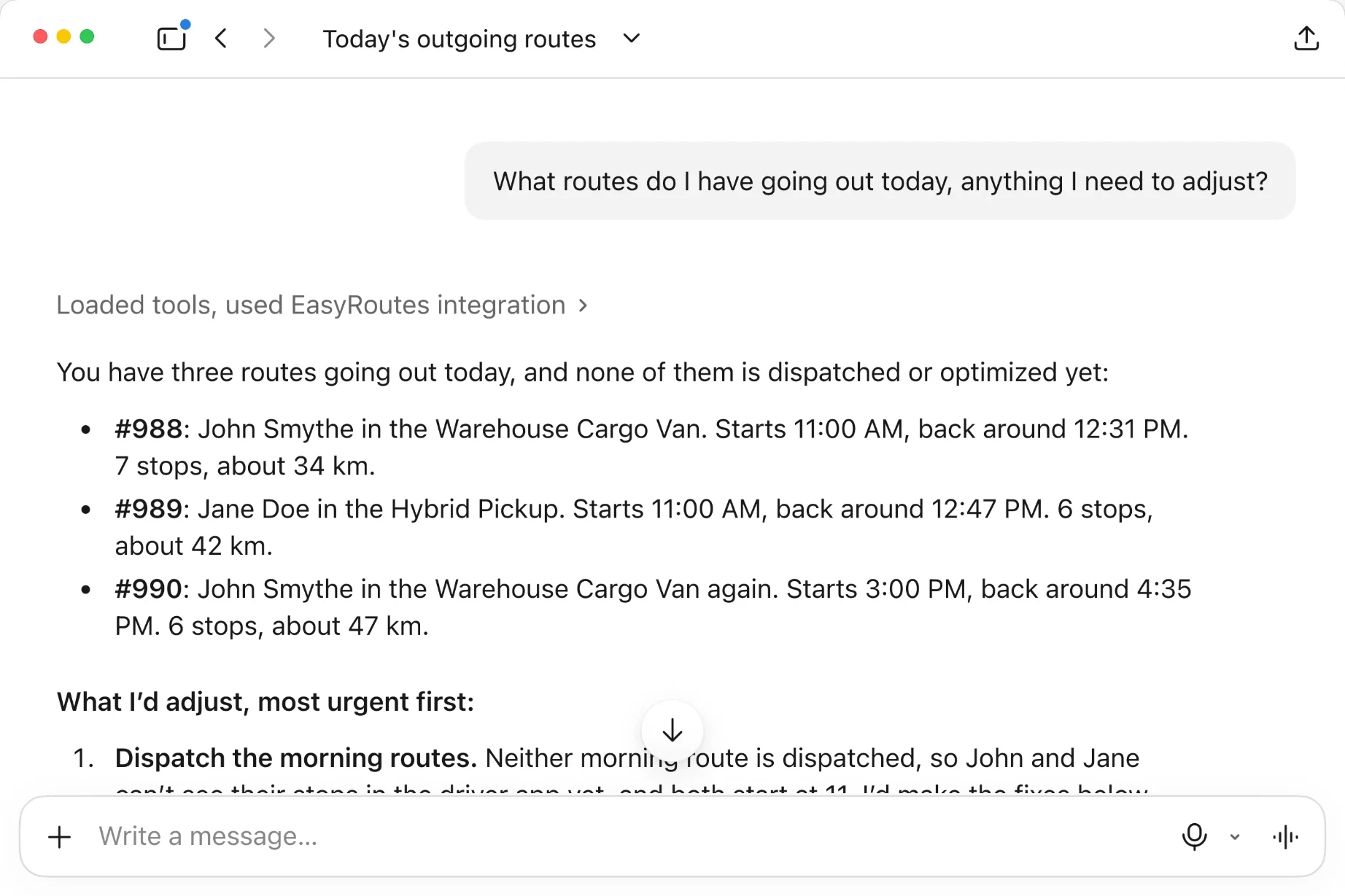
We’ve launched the EasyRoutes MCP server, so you can run your deliveries from the AI assistant you already use. Connect Claude, ChatGPT Desktop, Cursor or Codex with your EasyRoutes API keys, then ask for what you need in a conversation: your assistant looks things up and makes changes by calling EasyRoutes tools. With the MCP server, users can:
- Read your account: ask about your routes, stops, drivers and vehicles, like what’s going out tomorrow, who’s driving, and whether any stop is planned outside its time window.
- Set up routes: create a route, add imported stops or Shopify orders, and set route options like the planned time at each stop.
- Turn an email into stops: paste in an order email or a list of addresses, and your assistant imports them as stops, with their notes, items and time windows, and puts them on a route.
- Assign drivers and vehicles: give a route to a driver and a vehicle by name, or swap them in a sentence.
- Optimize and dispatch: optimize a route’s stop order, then send it to your driver, who’s notified in the EasyRoutes Delivery Driver app.
- Edit stops: change a stop’s address, note, time window, delivery date or duration, even after the route is set up.
- Approve every change: your assistant asks before each tool runs. Pre-allow the tools you trust, like lookups, or turn any off in your assistant’s settings.
Setup only takes a few minutes: create a client ID and secret key in EasyRoutes under Settings > API, available on every paid plan for Shopify and Web, then add the EasyRoutes server to your assistant.
Note: Your API keys can see and change everything in your EasyRoutes account, so keep them out of shared files and chats. Assistants that connect by signing in rather than with keys, like ChatGPT on the web, aren’t supported yet.
For setup steps in each assistant and examples of what to ask, see our EasyRoutes MCP server page, EasyRoutes 101: Get Started with the MCP Server and the MCP docs in the EasyRoutes Developer Docs portal.