Welcome to EasyRoutes 101! EasyRoutes now works with the AI assistant you already use. In this article, we’ll connect your assistant with the MCP server, look at what’s new in the API underneath it, then walk through prompts you can use straight away: checking on your routes, building them from emails and orders, sending them to drivers and fixing stops along the way.
What the MCP server does
The EasyRoutes MCP server connects AI assistants like Claude, ChatGPT Desktop, Cursor and Codex to your EasyRoutes account. You ask for what you need in a conversation, and your assistant calls EasyRoutes tools to do it. With it, your assistant can:
- Read your account: routes, stops, drivers and vehicles
- Set up routes: create them, add imported stops or Shopify orders, and set route options like the time at each stop
- Assign, optimize and dispatch: give a route a driver and vehicle, put its stops in their best order, and send it to the EasyRoutes Delivery Driver app
- Edit stops: change an address, note, time window, delivery date or duration
It can’t message customers or drivers, show where your drivers are, or look up a Shopify order by its order number. Those stay in EasyRoutes, and a few of the prompts below show how to work around them.
Powered by the improved EasyRoutes API
The MCP server is built on the EasyRoutes API, so anything your assistant does with it can also be built into your own systems with a custom integration. If you last looked at the API before the summer, we’ve made a lot of updates and improvements since then. Since July, the API can now:
- Edit a route after you create it: its name, note, tags, scheduled date and time, start and end locations, default stop time, and route options like a maximum duration or number of stops, avoiding tolls, and a speed factor.
- List routes by their scheduled start, so tomorrow’s routes are the ones going out tomorrow, not the ones created then.
- Work with vehicles: list them, look one up, and assign or unassign one on a route.
- Add Shopify orders to a route, up to 200 at a time, without importing them first, then edit the stops they make.
- Edit tasks on a stop, and at a route’s start and end.
- Refresh a route’s Shopify orders with their latest fulfillment statuses, items, notes and tags, so the route is up to date before you dispatch it.
- Show the phone number EasyRoutes uses for SMS on each stop, including in the stop status webhook.
EasyRoutes 101: Get Started with the API walks through building routes in your own code, and the API changelog lists every change and addition to the API’s capabilities.
Before you start
You’ll need:
- A paid EasyRoutes plan, on Web or Shopify. API keys come with every paid plan.
- An assistant that supports MCP: Claude Desktop, Claude Code, ChatGPT Desktop, Cursor or Codex.
- A test store, if you can, with a few sample orders and your own contact details on them, so you can try changes without affecting real deliveries.
Connect your assistant
1) Get your API keys
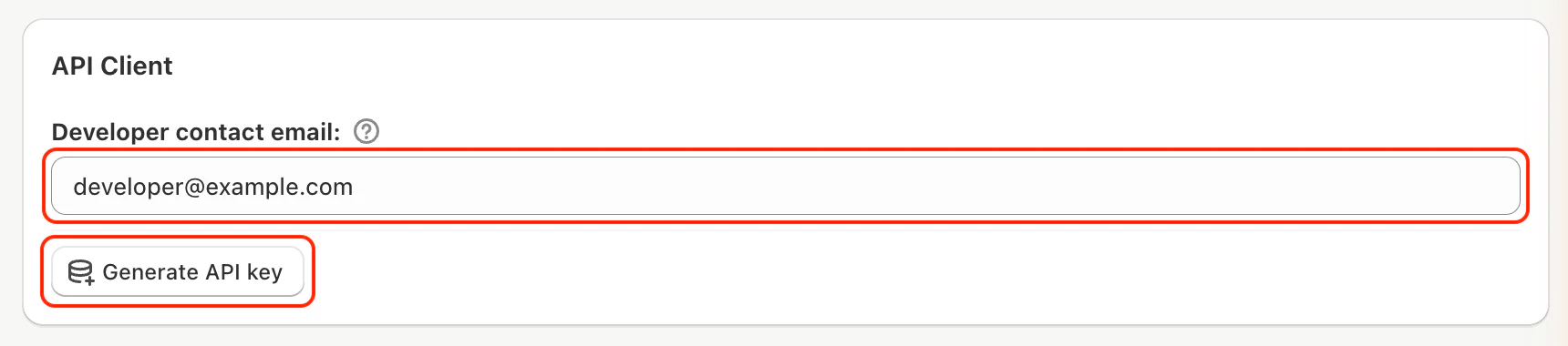
In EasyRoutes, go to Settings > API and generate a client ID and secret key.
2) Add EasyRoutes to your assistant
Each assistant takes the same server address and your keys. Copy the setup for yours from the EasyRoutes MCP server page, or follow the MCP docs for step-by-step instructions.
3) Choose what it can do
Your assistant asks before every tool runs. Once you’re comfortable, pre-allow the tools you use most, like looking up routes, and leave changes set to ask.
4) Check that it’s connected
Ask your assistant: “Use EasyRoutes to list my routes.” If it answers with your routes, you’re ready.
Prompts to try
Each prompt below shows what to ask, the EasyRoutes tools your assistant calls, and the reply we got on a test store. Your assistant may word things differently, and may call tools in a different order, but the results in EasyRoutes will be the same.
Check on your day
These prompts only read your account, so they’re the place to start. Ask them first thing to see what’s planned, or before routes go out to catch a problem while it’s still easy to fix. Nothing in EasyRoutes changes, which also makes these tools the safest ones to pre-allow.
list_routesreads your routes and everything on them: driver, vehicle, start time and distance, and each stop’s planned arrival, time window, items and note. It can sort routes by the day they’re scheduled for, and include archived routes when you ask about past ones.list_driversreads your drivers and whether each is active, inactive or archived. Drivers you’ve invited who haven’t signed up yet aren’t included.
See what’s going out tomorrow
Ask: “What’s going out tomorrow, and who’s driving?”
Tools called: list_routes, list_drivers
One route tomorrow: Wednesday – Email orders, with John Smythe in the Large Cargo Van (Holiday Rental). It leaves 123 Main Street at 9:25 with 3 stops and 6 bouquets, about 19.5 km. Jane Doe isn’t on a route tomorrow.
Good to know: Ask about today instead, first thing in the morning, for a daily briefing: “Give me a briefing on today’s routes: who’s driving, how many stops, and when each one leaves.”
Check tomorrow’s routes
Ask: “Anything I should check before tomorrow’s routes go out?”
Tools called: list_routes
Wednesday’s route looks ready. It’s optimized, and Elena Rossi, who asked for 10 to noon, is due at 10:05. It hasn’t been dispatched yet, so John won’t see it until you send it.
Good to know: Your assistant compares each stop’s planned arrival with its time window, so this is a good question to ask after building a route and before sending it.
Build routes
These prompts turn orders into a route, wherever the orders arrived: an email, a spreadsheet or your Shopify admin. Use them when you’d otherwise be typing addresses into EasyRoutes, and put the day, the start location and anything about the route itself in the same ask.
import_stopsbrings in stops from outside Shopify, up to 200 at a time, each with its address, contact, items, note, time window and delivery date. They show up in EasyRoutes as orders, ready for any route.create_routemakes an empty route with a start and end location, a date and start time, a name, and options like avoiding tolls or a maximum number of stops.add_route_stopsputs imported stops on a route.add_route_shopify_ordersdoes the same for Shopify orders, taking each stop’s address, note and items from its order. If any order can’t be added, such as one with no shipping address, none are.update_routechanges the route itself once it’s created: its name, date, note or tags, or the time each new stop plans for.list_vehicles,assign_route_driverandassign_route_vehiclefind your vehicles and put a driver and vehicle on the route.reoptimize_routeputs the stops in their best order. Adding stops never does this on its own, so ask for it if your assistant doesn’t.
Turn an order email into a route
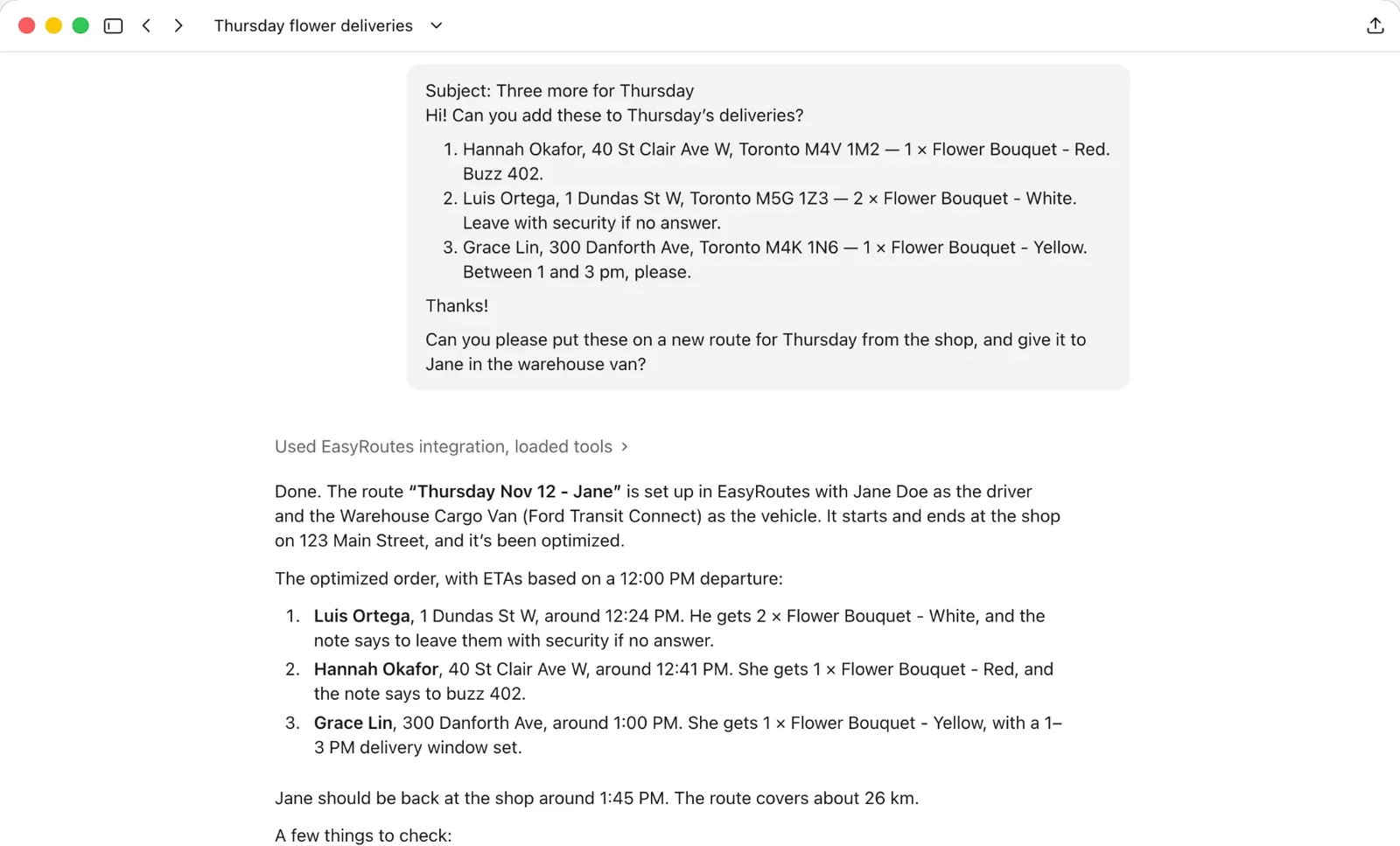
Paste the email into the chat, then ask: “Put these on a new route for Thursday from the shop, and give it to Jane in the warehouse van.”
Tools called: list_routes, list_drivers, list_vehicles, import_stops, create_route, add_route_stops, assign_route_driver, assign_route_vehicle, reoptimize_route
Done. The route “Thursday Nov 12 - Jane” is set up in EasyRoutes with Jane Doe as the driver and the Warehouse Cargo Van (Ford Transit Connect) as the vehicle. It starts and ends at the shop on 123 Main Street, and it’s been optimized. With a 12:00 pm departure, Luis Ortega is due around 12:24, Hannah Okafor around 12:41 and Grace Lin around 1:00, with her 1 to 3 pm window set. You didn’t give a time, so I set noon, which works for Grace’s window. Jane won’t see the route until it’s dispatched.
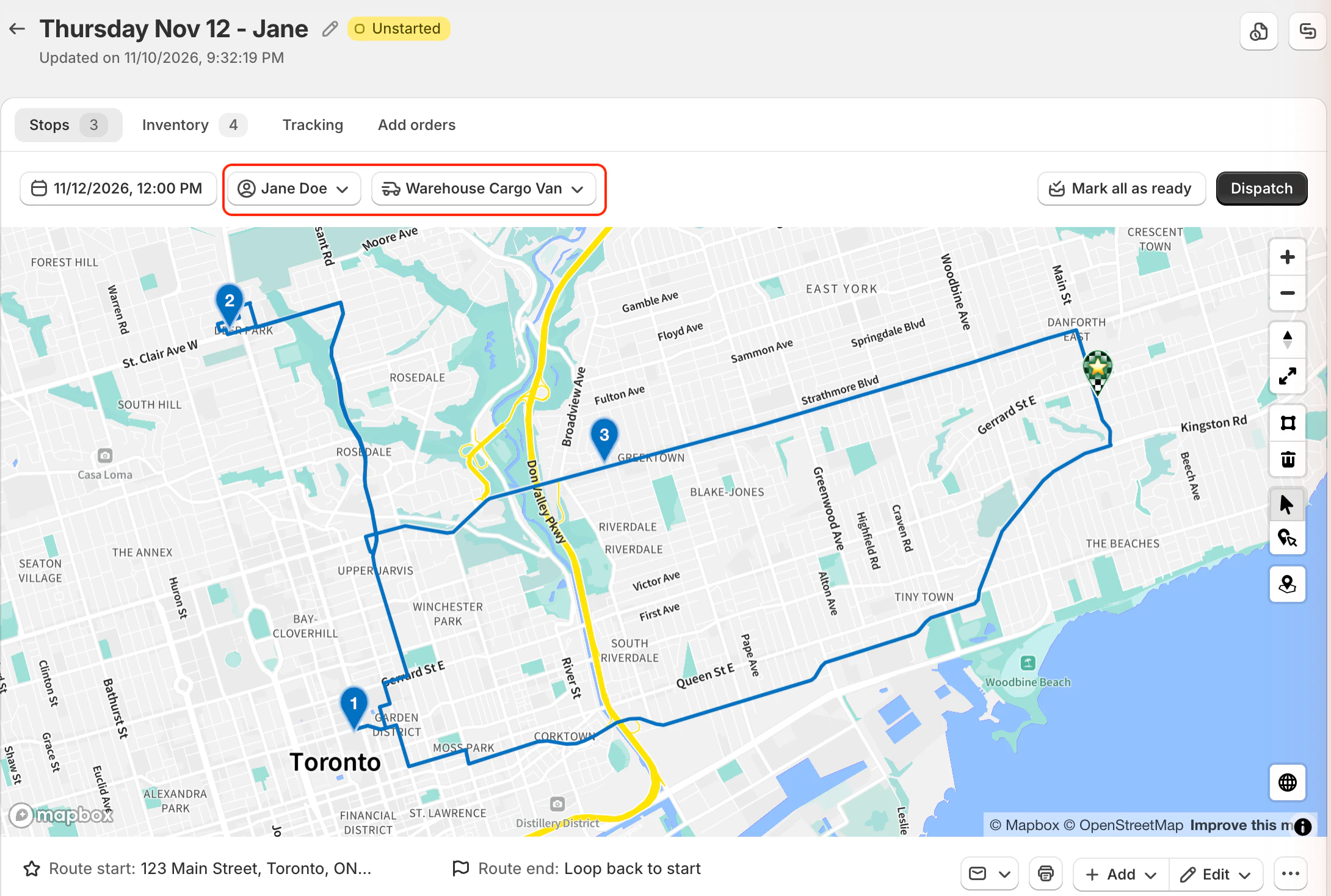
Good to know: Notes, items and delivery windows in the email come across with each stop. Here Claude chose a noon start so Grace’s 1 to 3 pm window would work: optimizing puts stops in their best order, but it won’t move a stop into its window on its own, so it’s the start time that does it.
Build a route from Shopify orders
Paste links to the orders from your Shopify admin, then ask: “Make a route for Friday from the shop with these orders.”
Tools called: create_route, add_route_shopify_orders
Friday’s route is ready, with a stop for each of orders #1203 to #1206 and 9 bouquets in all: Amara Okafor (3 yellow), Daniel Kim (2 red), Sofia Marino (1 white) and Liam Tremblay (one of each). Each stop has its address and items from the order. It isn’t optimized and doesn’t have a driver yet.
Good to know: Your assistant needs each order’s ID, which is the number at the end of its link in Shopify admin. It can’t find an order from its order number (like #1203) alone.
Set route options before adding stops
Ask: “Make a Friday route from the shop with these orders, and plan 5 minutes at each stop.”
Tools called: create_route, update_route, add_route_shopify_orders
Done. I set the route’s stop time to 5 minutes before adding the orders, so every stop plans 5 minutes on site. Leaving at 10:00, Amara is due at 10:39, Daniel at 10:52, Sofia at 11:23 and Liam at 11:40, about 28.4 km.
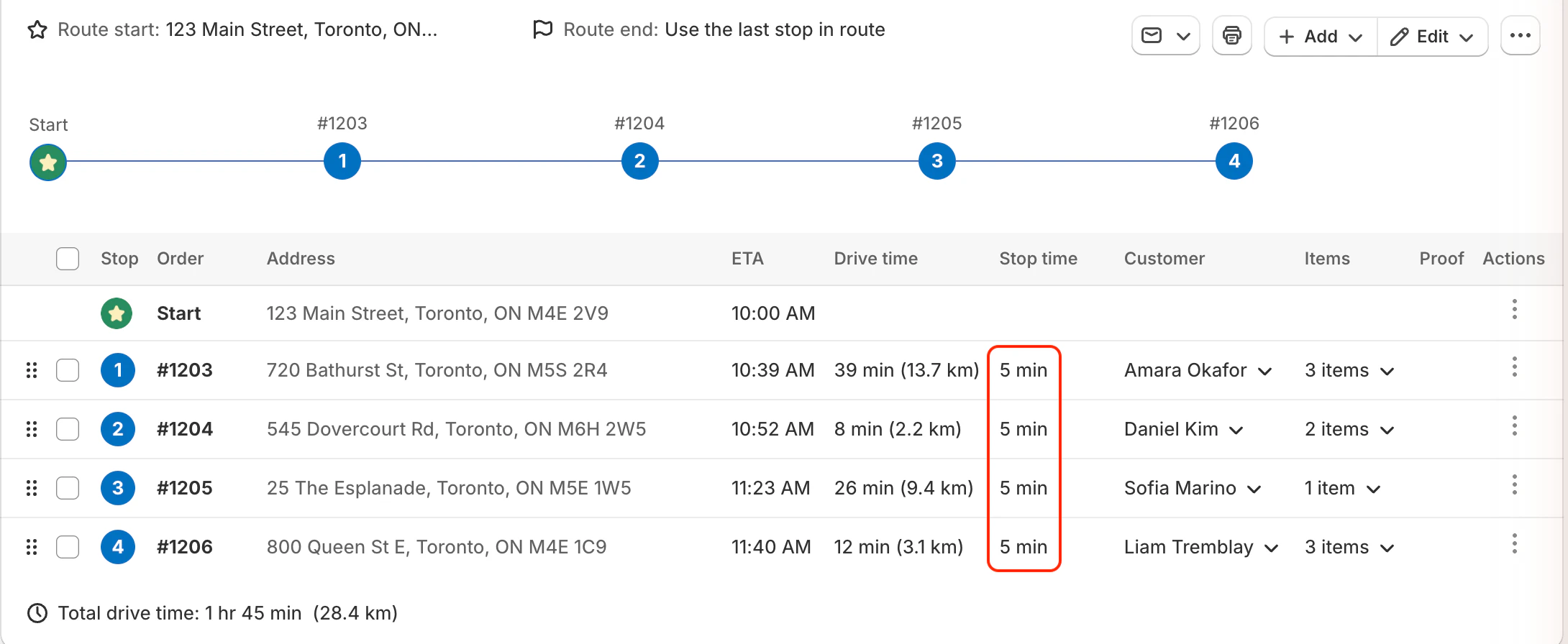
Good to know: Each stop takes the route’s stop time when it’s added, so the stop time has to be set before the orders go on. Changing it afterwards only affects stops you add later; ask your assistant to update existing stops’ durations instead.
Assign, optimize and dispatch
These prompts take a built route the rest of the way: the right driver and vehicle, a last check, any edits, its best order, then out to your driver. Work through them in the order shown, since a route is easiest to fix before your driver has it. Tools from the last two sections swap the driver and vehicle, rename the route, check it and optimize it; asking to optimize a route that’s already optimized changes nothing. Three tools are new:
update_route_stop_locationchanges a stop’s address on this route only. The order it came from, in Shopify or EasyRoutes, stays as it was. The change marks the route as not optimized.update_route_stopchanges a stop’s note, time window, delivery date, stop time or priority. On a stop from a Shopify order, the contact and items come from the order and can’t be changed this way. Neither tool can change stops added by hand in EasyRoutes.dispatch_routesends the route to the EasyRoutes Delivery Driver app, and your driver is notified. If you have EasyRoutes update Shopify orders when a route is dispatched, those updates don’t happen when your assistant dispatches it.
Swap the driver and van
Ask: “Jane’s off Thursday. Switch that route to John, in the Sprinter.”
Tools called: list_drivers, list_vehicles, assign_route_driver, assign_route_vehicle, update_route
Done. John Smythe is on Thursday’s route now, in the Large Cargo Van (Holiday Rental), your Mercedes-Benz Sprinter. I renamed the route “Thursday Nov 12 - John” to match. The stops and times haven’t changed.
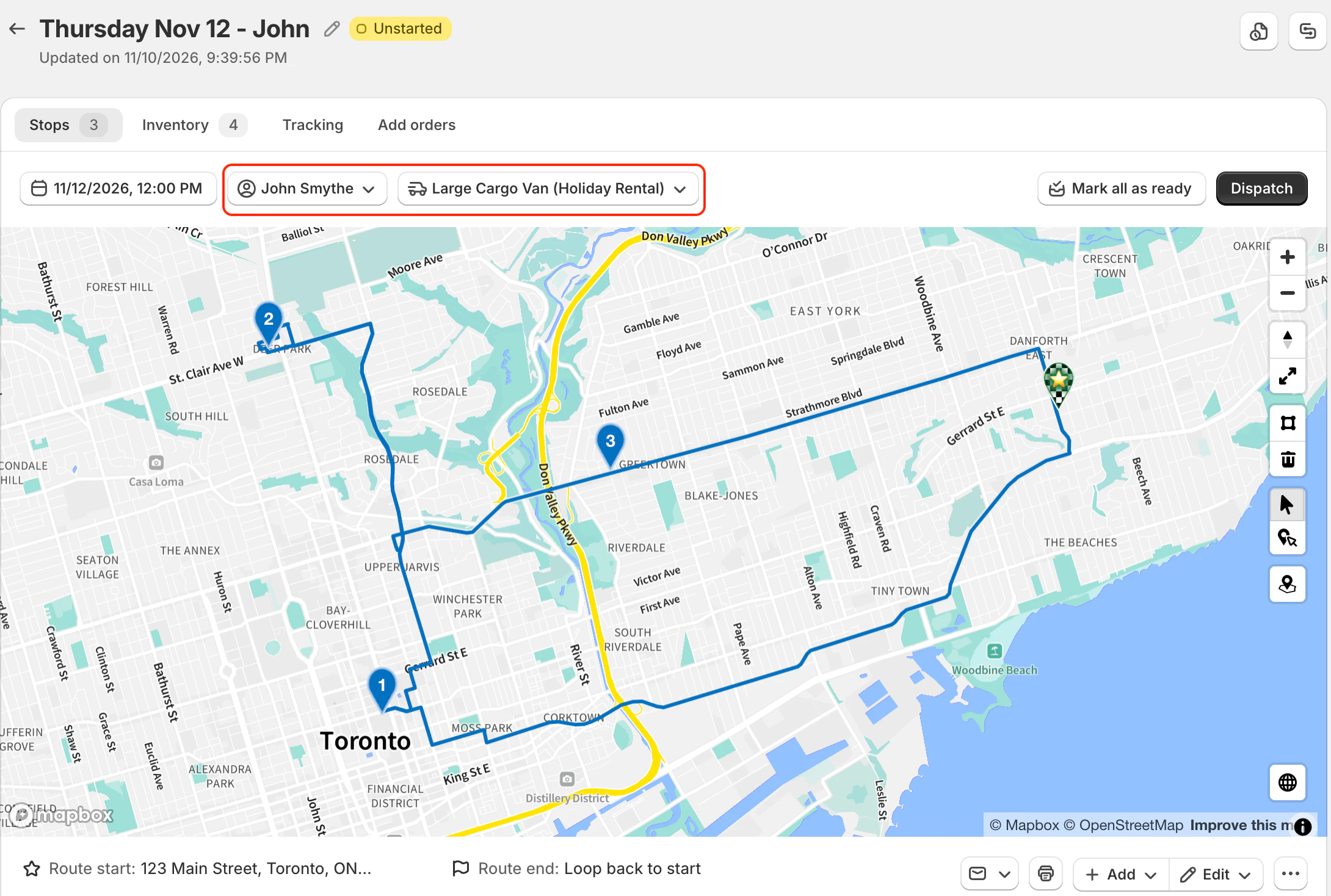
Good to know: You don’t need a vehicle’s exact name. Your assistant can match “the Sprinter” to a van by its make and model.
Check a route before you send it
Ask: “Anything I should check before Thursday’s route goes out?”
Tools called: list_routes
One thing. Grace Lin is due at 12:59, a minute before her 1 to 3 pm window opens, and EasyRoutes flags it. Otherwise the route is optimized and ready, and it hasn’t been dispatched yet.
Good to know: “Around 1:00” isn’t the same as inside the window. A minute early still counts, and the app flags it too, so it’s worth asking before you send a route.
Change a stop’s address and note
Ask: “Luis’s flowers should go to his office instead: 200 Bay St. Tell the driver to leave them at reception, 14th floor.”
Tools called: list_routes, update_route_stop_location, update_route_stop
Updated. Luis’s stop is now 200 Bay St, and the note reads “Leave at reception, 14th floor.” He’s due at 12:21 instead of 12:24, and the change moves Grace to 1:04, inside her window. The route will need optimizing again.
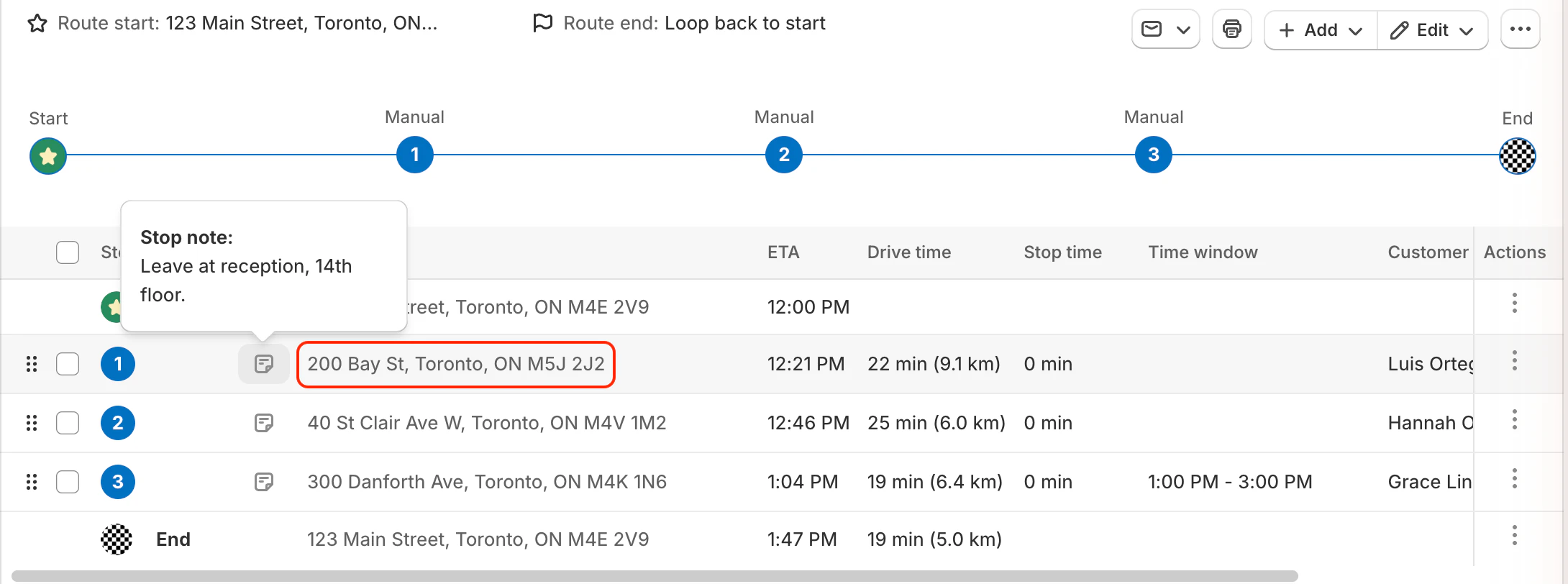
Good to know: Updating a note replaces the whole note, so include anything from the old one you want to keep.
Optimize the route
Ask: “Optimize it again.”
Tools called: reoptimize_route
Optimized. The order stays the same, Luis, Hannah, then Grace, about 26.6 km in all, and Grace is still due at 1:04, inside her window.
Good to know: Changing a stop’s address marks the route as not optimized, so ask again after edits like this one.
Send it to your driver
Ask: “Looks good. Send it to John.”
Tools called: dispatch_route
Sent. John will be notified he has a new route in the EasyRoutes Delivery Driver app. He leaves 123 Main Street at noon: Luis Ortega at 12:21 (2 white bouquets, at reception), Hannah Okafor at 12:46 (1 red, buzz 402) and Grace Lin at 1:04 (1 yellow).
Good to know: Drivers see changes to a dispatched route straight away, so check it before you change it.
Fix things on the fly
These prompts handle what changes after a route is built, or after it’s gone out: a customer’s message, a cancelled order. Paste what came in and name the route, and your assistant finds the stop and makes the change. They work on a dispatched route too, so you can keep using them through the day, but your driver sees each change straight away.
update_route_stop, from the last section, also works on a route that’s under way or finished, so name the one you mean.delete_route_stopstakes one or more stops off a route, including one that’s under way. Like adding stops, it doesn’t reoptimize the route.reoptimize_routecan also leave delivered and attempted stops where they are and reorder only the ones still to go. That’s the way to reoptimize once a driver has started.
Pass on a customer’s message
Paste the customer’s message, then ask: “Hannah texted that her front buzzer’s broken. Pass it on to Thursday’s driver.”
Tools called: list_routes, update_route_stop
Done. Hannah’s note now reads “Buzz 402. The front buzzer is broken, so use the side door.” I kept the buzzer number from her original note.
Good to know: Unless you’ve pre-allowed update_route_stop, your assistant asks before it runs, and shows you the note it’s about to set.
Remove a cancelled stop
Ask: “Grace cancelled. Take her off Thursday’s route and reoptimize.”
Tools called: list_routes, delete_route_stops, reoptimize_route
Grace’s stop is off Thursday’s route, and I’ve reoptimized it: Luis at 12:21, then Hannah at 12:46. John should be back at the shop around 1:14 instead of 1:47.
Good to know: Removing a stop doesn’t reoptimize the route on its own, so ask for both.
Tips for better results
- Name the route by its day, name or driver, so your assistant changes the right one.
- Ask it to check before you dispatch, with a prompt like “Anything I should check?”
- Paste the source: emails, order links or a customer’s message give your assistant the details to work from.
- Ask for one change at a time while you’re getting started, and approve each one as it asks.
Further information
- EasyRoutes MCP server: what it does and setup for each assistant
- MCP docs: server details, the full list of tools and troubleshooting
- EasyRoutes MCP support article: more info on setup, and frequently asked questions about the MCP
- EasyRoutes 101: Get Started with the API: build the same workflows in your own code