
You can now enable and configure the Route Assistant for auto-adding orders to a route from the Route Options page, prior to creating a new route:
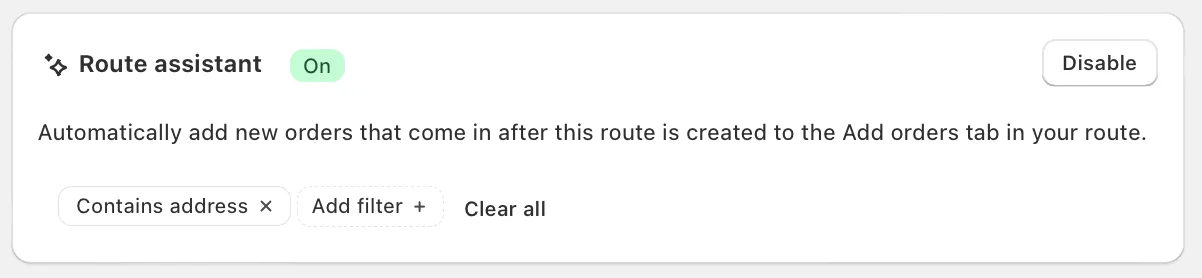
By default, the Route Assistant will be configured with the Contains address filter applied. Use the Clear all and/or Add filter buttons to configure any filter combination you'd like the Route Assistant to watch for:
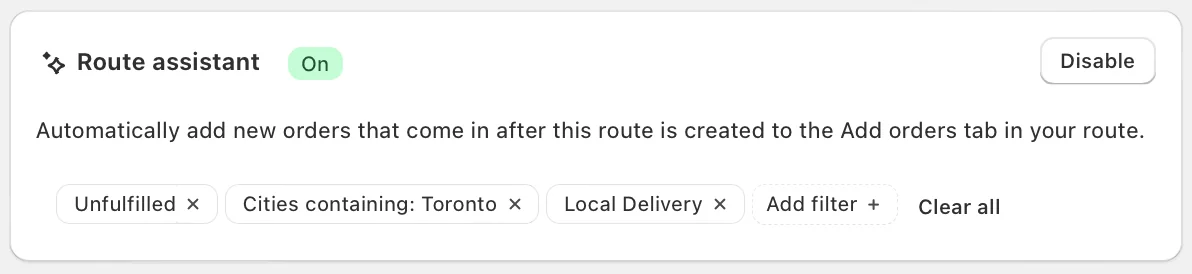
Once your new route is created with Route Assistant enabled, when viewing that route you'll see a banner indicating that there are new orders that match these filters waiting to be routed from the Add orders tab:

For full details on using the Route Assistant to automate your route planning workflows, see the support article for this feature.