
EasyRoutes now provides real-time driver location data for active and completed routes, including:
- Live GPS location of drivers on active routes;
- A new Tracking tab for active and completed routes, featuring at-a-glance information as stops are completed in real-time;
- A new option for displaying live driver location on customer order tracking links when a driver is one stop away.
Note: Real-time driver location tracking is currently only available on EasyRoutes Premium and Enterprise pricing plans.
How to Enable Real-Time Tracking:
To enable real-time driver tracking, from EasyRoutes Settings > Driver settings tab, in the Real-time tracking section, check the box for "Enable real-time tracking":

Real-Time Location on Routes:
Once a route is dispatched and started by a driver, real-time location data can be viewed live from the Tracking tab of any Route page:
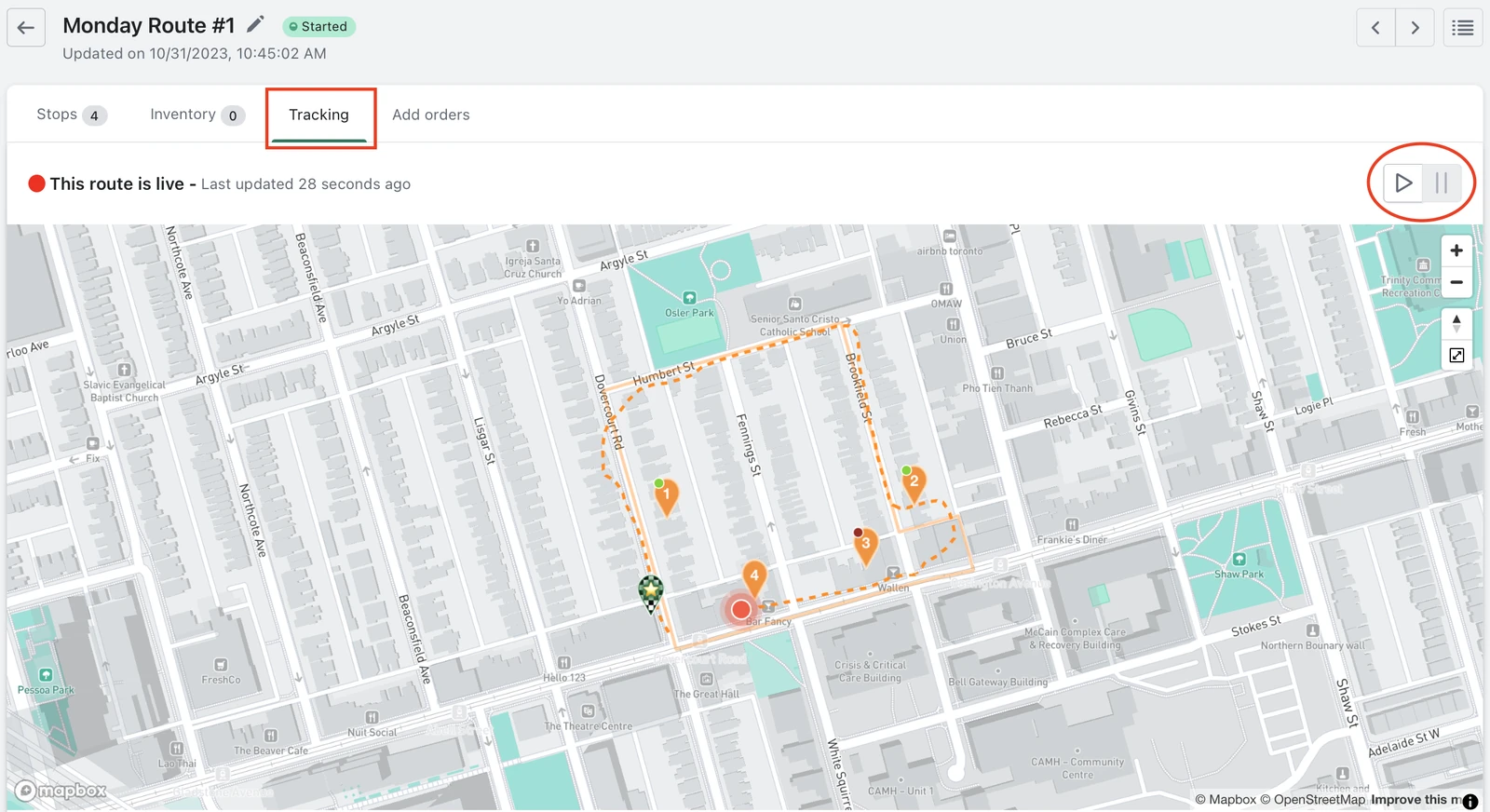
- A driver's current position (outside stop #4 above) and past route path will display as a large dot and dashed line on the map, alongside the solid route navigation line.
- Stops marked as Delivered will display with a green dot (stops #1 and #2 above).
- Stops marked as Attempted will display with a red dot (stop #3 above).
- By default, the route will auto-refresh as GPS updates are received, but this can be paused and/or restarted using the buttons above the map.
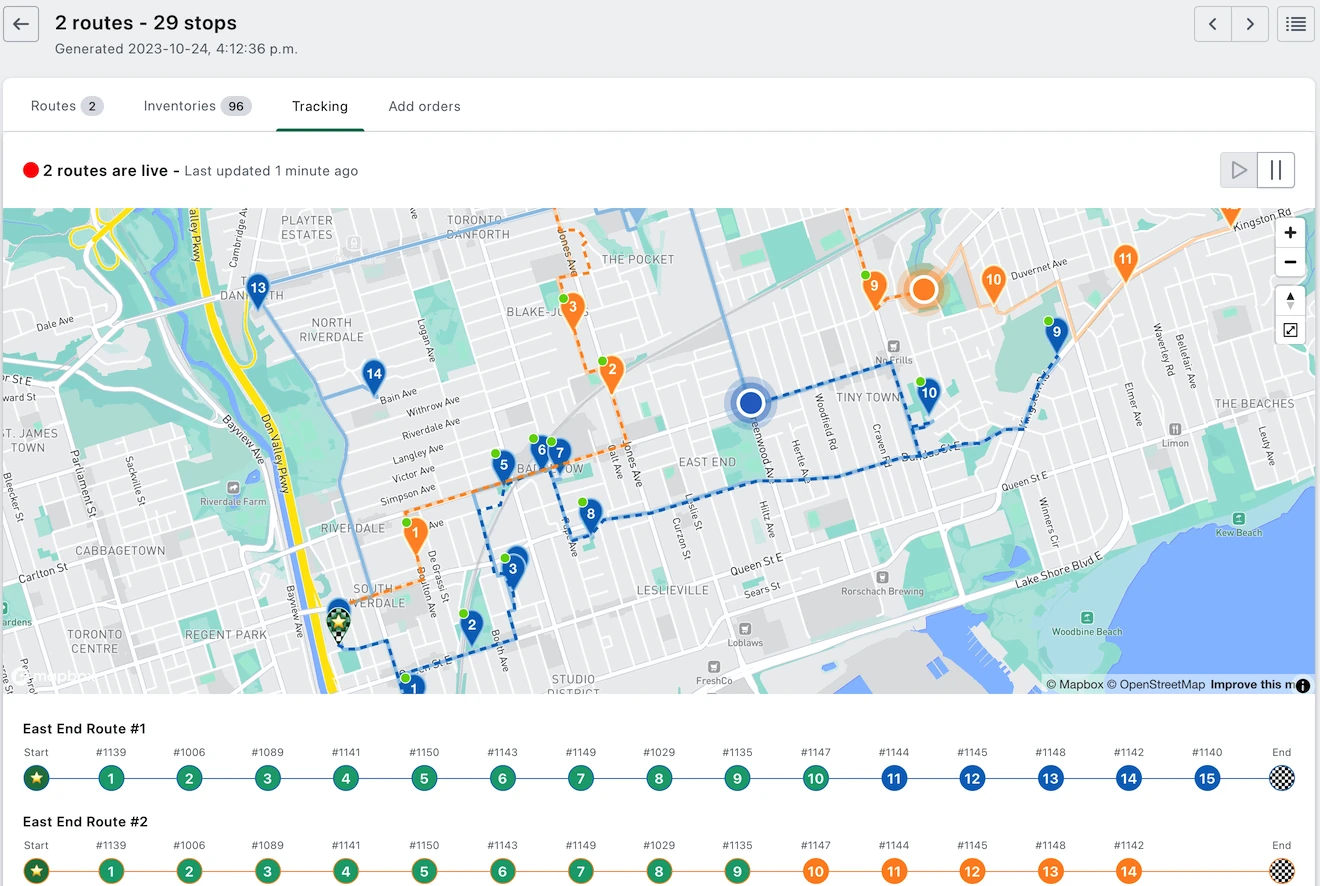
Routes that are planned as part of a Group can be tracked simultaneously by selecting "All routes" once viewing a Route Group's Tracking tab:

When tracking a Route Group, the real-time location dot will display in the same colour as the route it applies to (instead of red) in order to prevent confusion over which driver applies to which route:
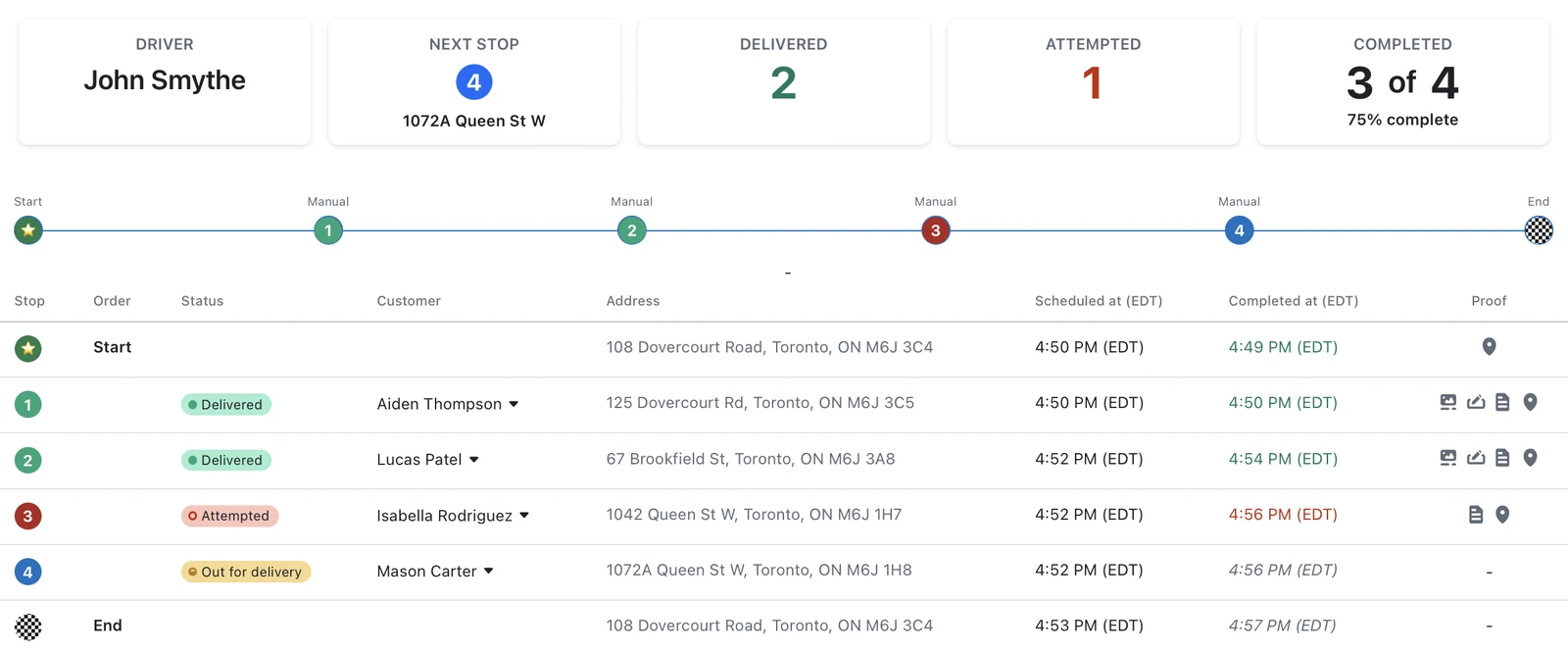
The route summary and Orders table below the map will also update in real time as stops are completed. Any Proof of Delivery items are available to view under the "Proof" column as soon as they're uploaded by a driver:
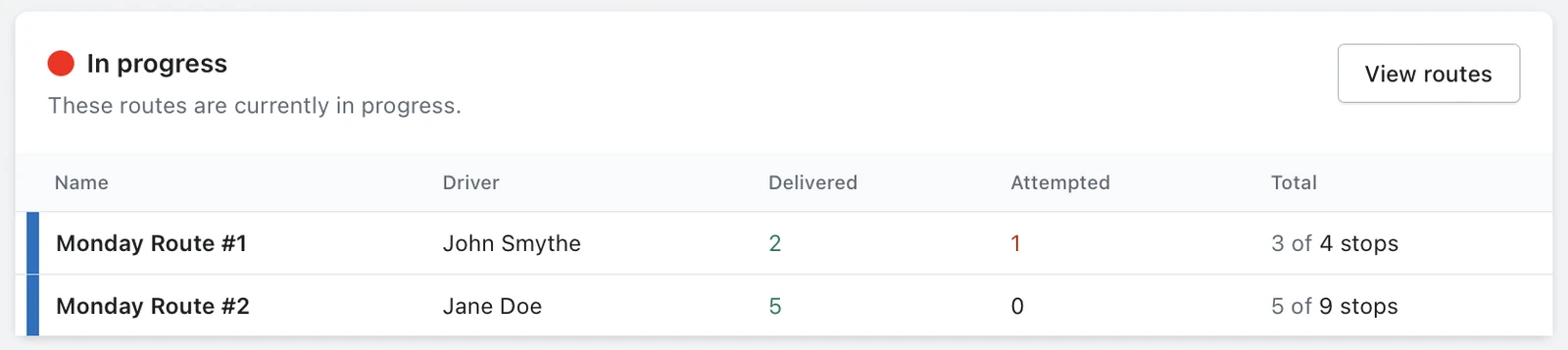
Once routes are started, a new "In progress" card will appear on your EasyRoutes Dashboard displaying any routes that are actively being delivered and tracked. Click the name of any in progress route to jump directly to the Tracking tab for that route:
Real-Time Location on Customer Tracking Pages:
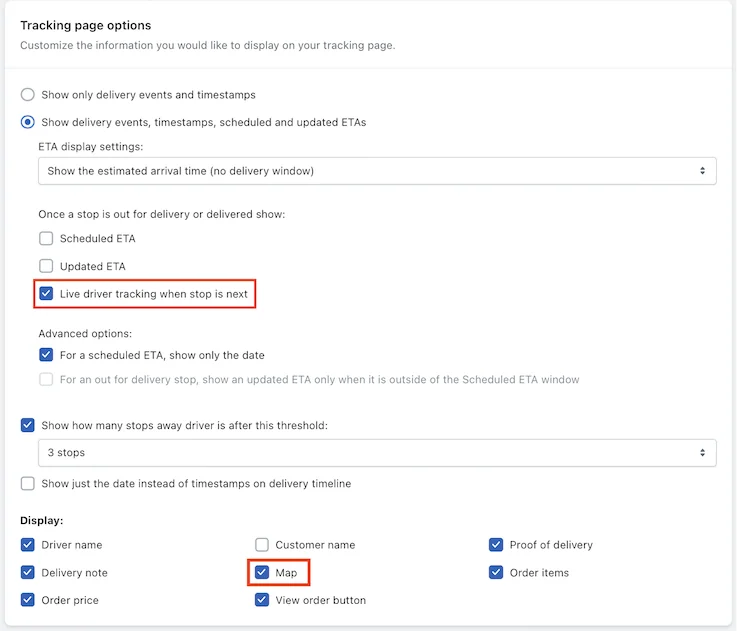
Real-time driver location can also be displayed in customer order tracking links - enable this feature in EasyRoutes Settings > Order tracking, from the Tracking page options section; ensure "Map" is also selected from the Display sub-section:
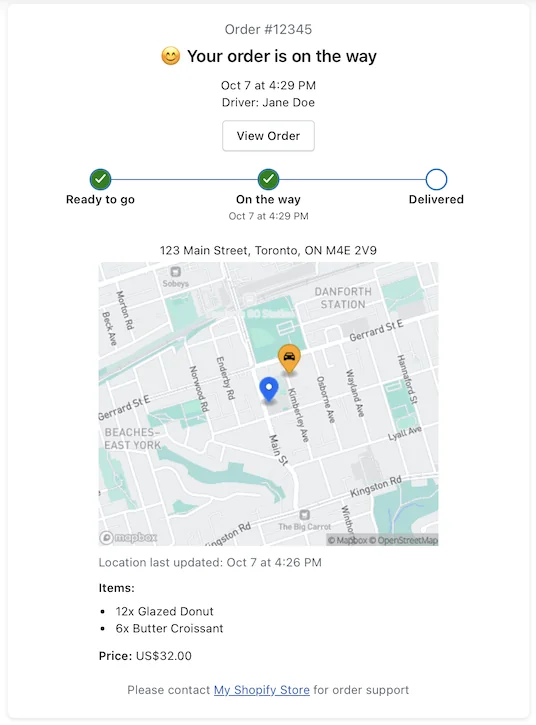
Customer tracking links will then include real-time driver location (represented by an orange car pin, as shown below) when a customer's stop is next in the driver's route. More info on configuring real-time driver location on customer tracking links can be found here:
Real-Time Location on Delivery Driver App:
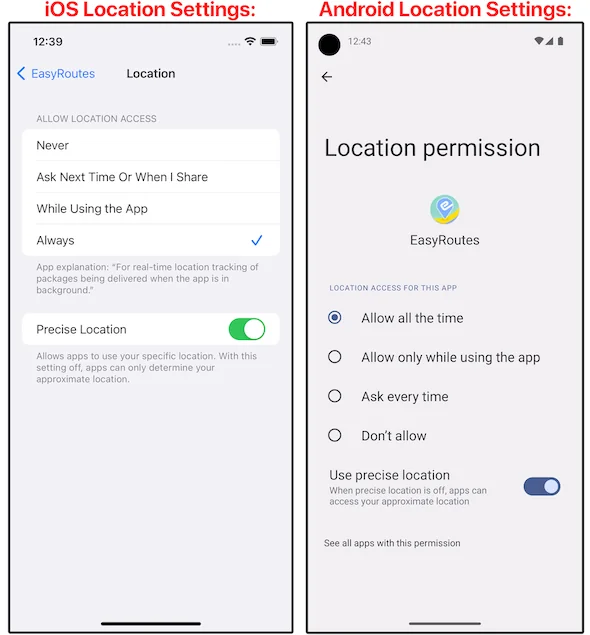
Drivers will need to update to the latest version (1.0.32) of the EasyRoutes Delivery Driver app in order to take advantage of real-time tracking on their routes. The app may also request additional location permissions in order to consistently update location data when the app is running in the background during deliveries:
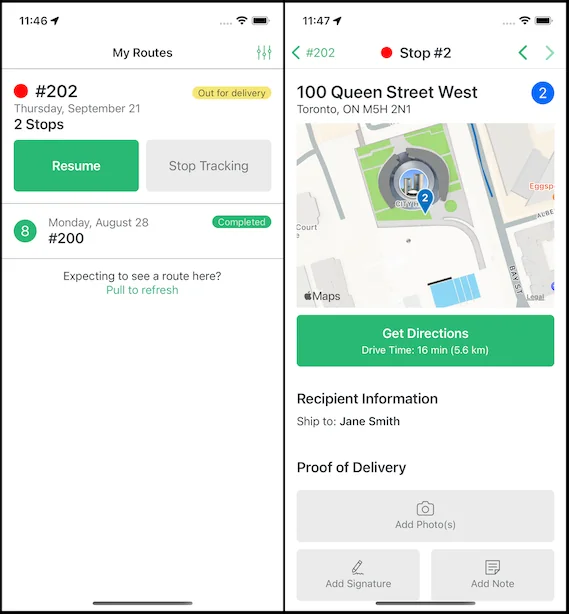
Once real-time driver tracking is enabled and permissions are properly approved, drivers will see a blinking red dot on the route list and individual route pages for any route that is actively being tracked. Drivers have the option to tap "Stop tracking" to disable live location tracking, and will be prompted that real-time tracking will be enabled again when tapping "Resume" to continue their route:
For more information on how to enable, configure and utilize real-time driver tracking on your routes, check out the latest post on the Roundtrip blog or the support article for this new feature.